Projectal and AI Assistants: Supercharging Your Studio with Agentic AI

Imagine asking an AI assistant a complex question about your studio’s live information and getting a formatted answer, or having it read a client brief and turn it into a project bid.
By connecting AI assistants directly to Projectal, you can do exactly that. In this video and article, we’ll demonstrate how it works with Claude, giving it access to your live project, staffing, cost and scheduling information.
Introduction
From answering questions and generating reports to automating repetitive tasks, you can use AI to work more efficiently and make better-informed decisions.
What do I need?
To get started, you’ll need a Projectal account and an AI tool that supports MCP.
What is MCP?
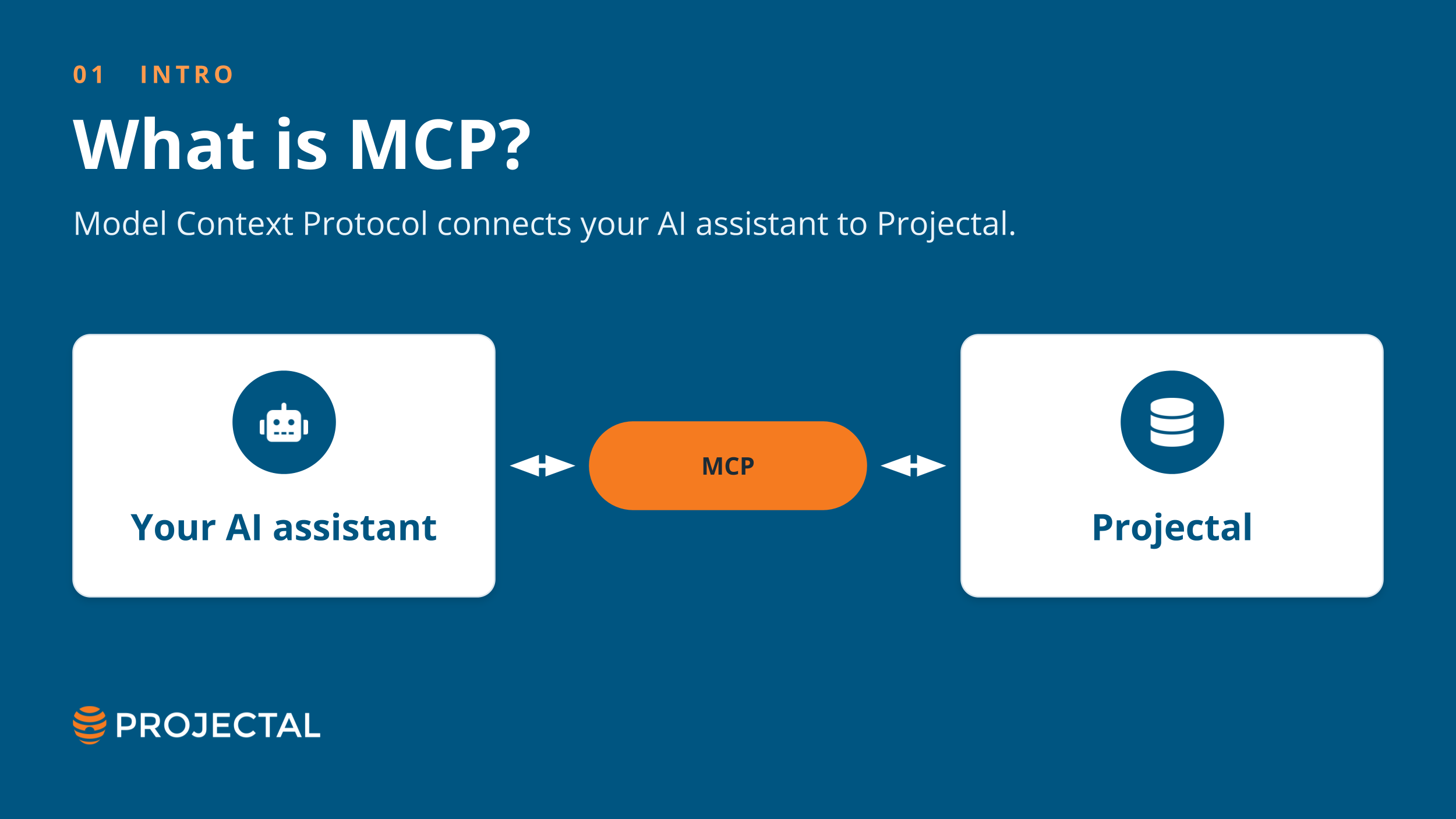
MCP stands for Model Context Protocol. It provides a way for AI assistants to connect to other systems, retrieve information and use it to answer questions or carry out tasks. Projectal’s MCP server connects your AI assistant directly to Projectal, giving it access to your live project and business information.
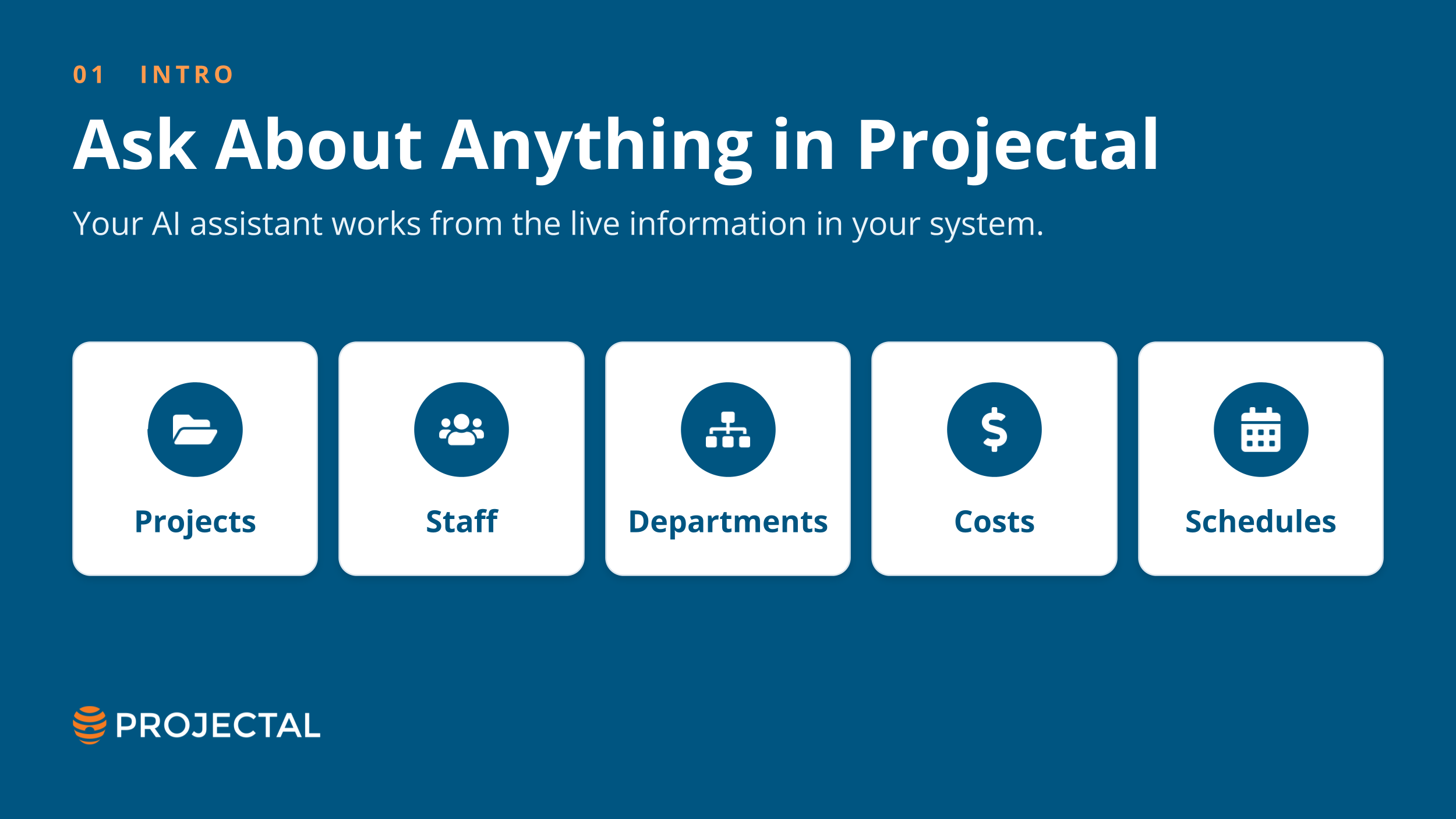
You can ask questions about projects, staff, schedules and costs, or build AI workflows that create and update information in Projectal. Built-in security and permission settings let you control what the AI can access and which actions it can perform.
The MCP server is included with your Projectal subscription, with no additional Projectal charges or token costs.
Connecting Claude
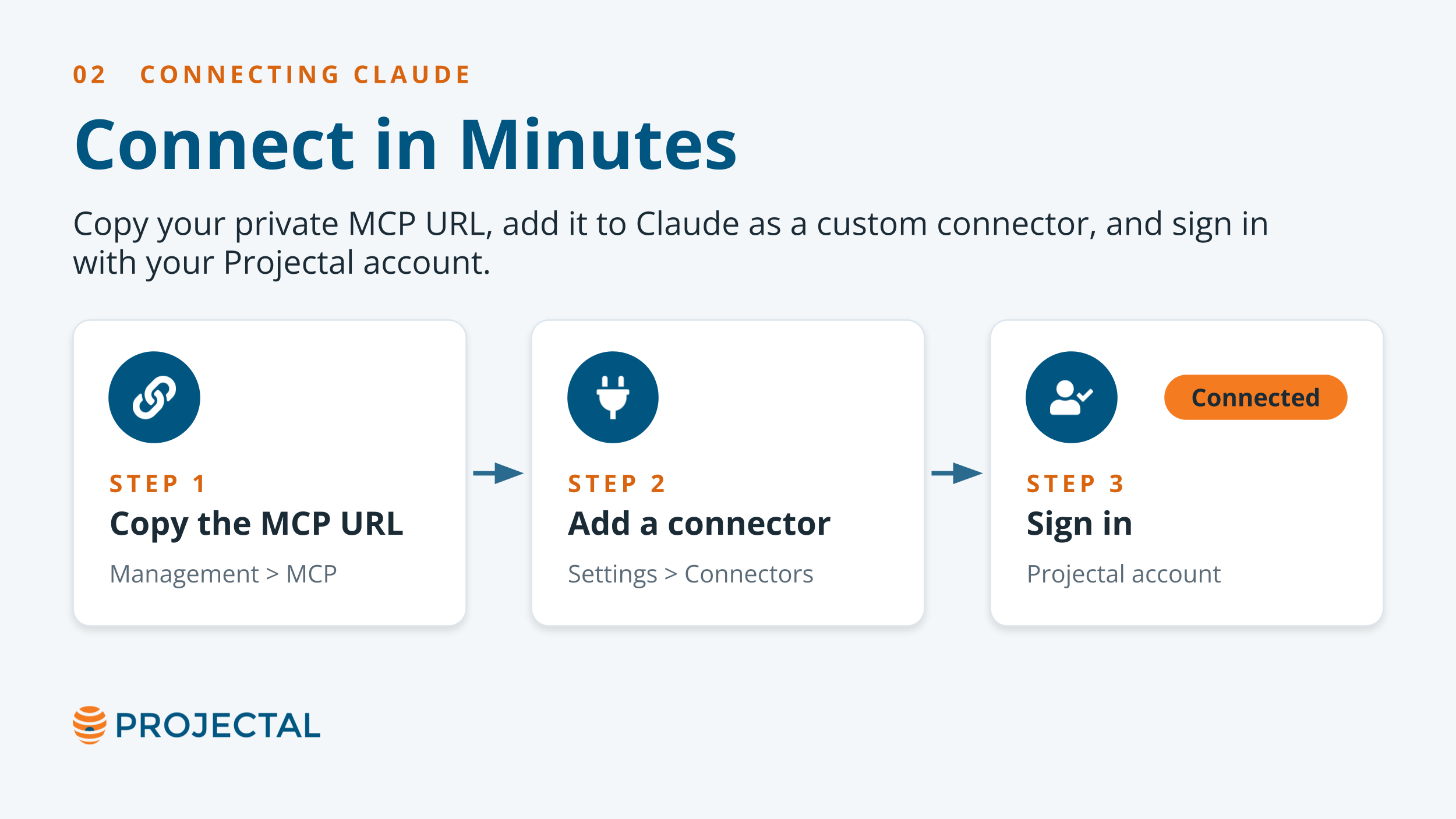
The first step is to get your MCP connection URL from Projectal. In Projectal, open the Management screen and scroll down to the MCP Server section. Copy the MCP URL provided for your account. Each company using Projectal has its own private connection URL.
Next, open Claude and go to Settings > Connectors. Select Add Custom Connector and paste in the Projectal MCP URL. Give the connection a name, such as “Projectal MCP”, and continue. Claude will run a few checks before asking you to sign in. This uses OAuth authentication, allowing you to log in with your Projectal account and authorise the connection. Once you’ve completed the sign-in process, Claude can connect to Projectal using your account permissions.
That’s it. Claude is now connected to Projectal, and you can start asking questions about the information in your system.
Querying Projectal
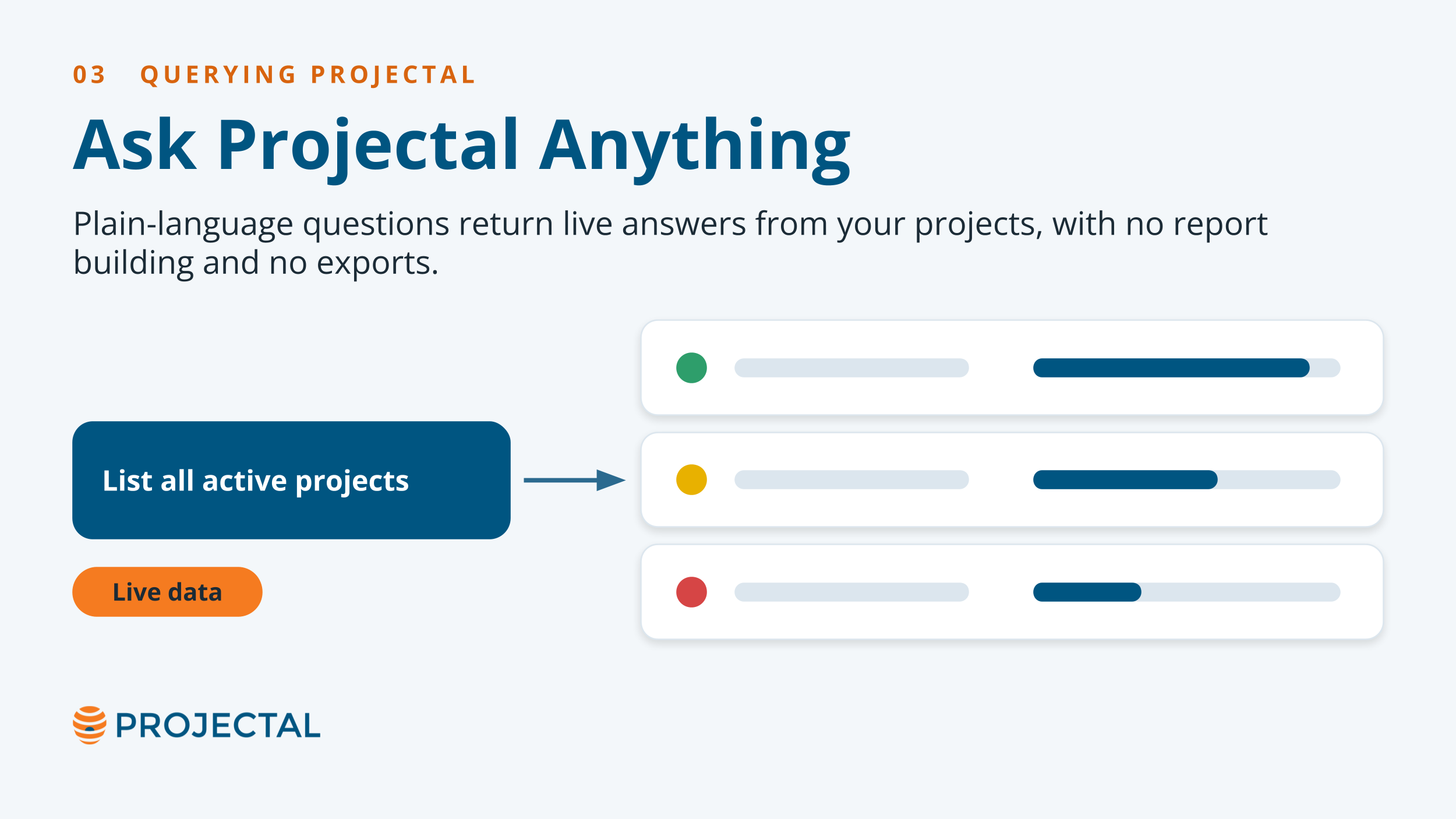
Let’s start with a simple example. You could ask Claude:
List all active projects
Claude retrieves the relevant information directly from Projectal and returns a list of your current active projects. Depending on the question, the amount of information involved and the work required to interpret it, a response can take some time. Claude needs to understand the request, retrieve the relevant information from Projectal and assemble the results into a useful answer.
You can then build on that initial question to get more detailed information. For example:
List all active projects with risk level and progress
Claude can return the projects alongside their risk levels and progress information. It can also interpret the request and present risk levels using a Red, Amber, Green (RAG) status, without you having to specify that format. You can then ask a follow-up question:
Compare this to one month ago
Claude can compare the current position with the historical information available in Projectal, helping you understand how project status and progress have changed over time.
This offers a different way to work with project information. Rather than building a report, exporting it to a spreadsheet and manually working out what has changed, you can ask Claude to perform the comparison for you.
Staffing
The same approach works with staffing information. Start by asking:
List all active staff including their departments, employment status and skills
Claude retrieves the relevant staff information from Projectal and presents it in a list. You can then ask follow-up questions, such as:
Which staff are currently idle?
This provides a quick way to identify staff who may be available for work. You can also ask questions about availability at a particular time:
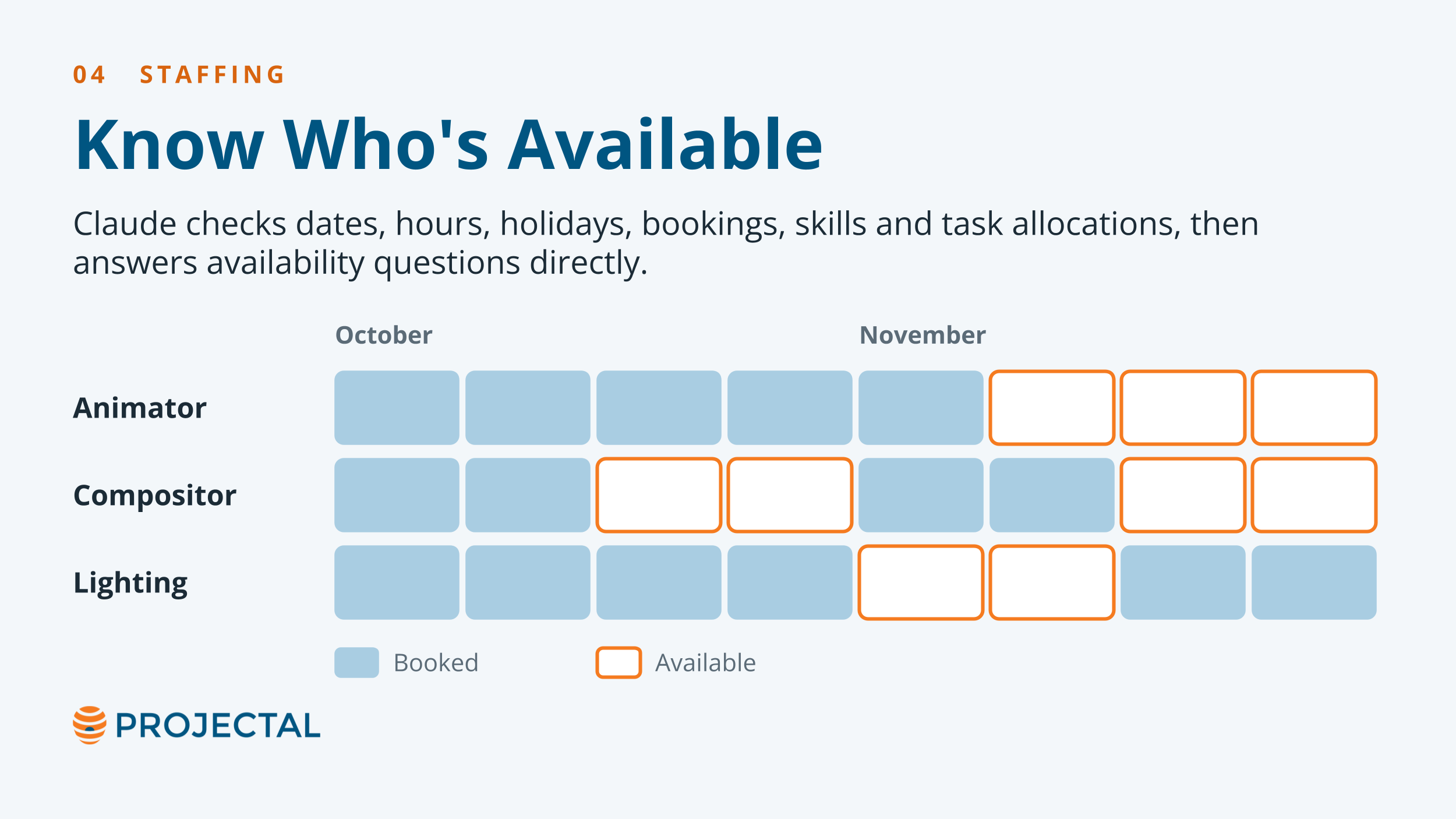
Which animators are available in November?
Claude can interpret the timeframe and use the staffing information available in Projectal to identify suitable people.
Projectal holds information about staff, including their employment dates, working hours, holidays, bookings, skills and task allocations. By querying this information through Claude, you can investigate availability without having to work out which reports to run or manually combine information from different parts of the system.
This is particularly useful for producers, resource managers and department heads who need to understand staffing availability and plan upcoming work.
Reporting
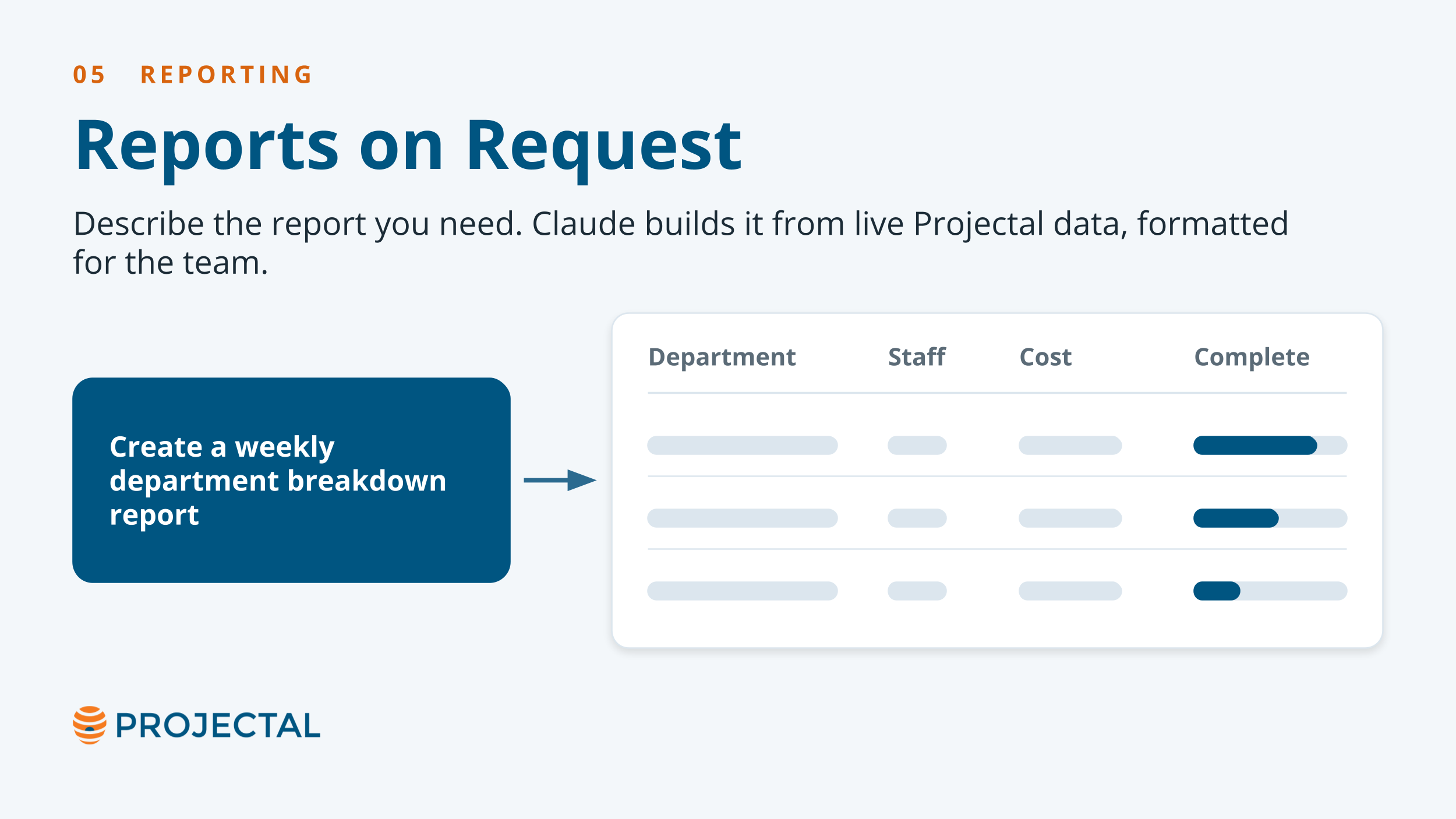
You can also ask Claude to produce more structured reports. For example:
Create a weekly department breakdown report with number of staff, costs, task completion rate and unfinished tasks
Claude can use the information available in Projectal to assemble a report covering these metrics across your departments. The result is a formatted report that can be reviewed and shared with the team.
The key difference is that you aren’t exporting information from Projectal and uploading it to Claude for analysis. Claude works directly with Projectal through the MCP connection, retrieving the information it needs to answer your request.
This can save time on recurring reporting tasks and make it easier to investigate specific questions as they arise.
Agentic Workflows
In the examples above, we have been using Claude to retrieve information and answer questions. But MCP can also be used as part of agentic AI workflows, where an AI assistant works with connected tools to carry out tasks on your behalf.
Consider a typical project bidding process. A client sends you a brief describing a new project. Before you can prepare a bid, someone needs to review the brief, identify the deliverables, work out the tasks involved, estimate the work and calculate the likely costs and schedule. Much of this process involves manual work.
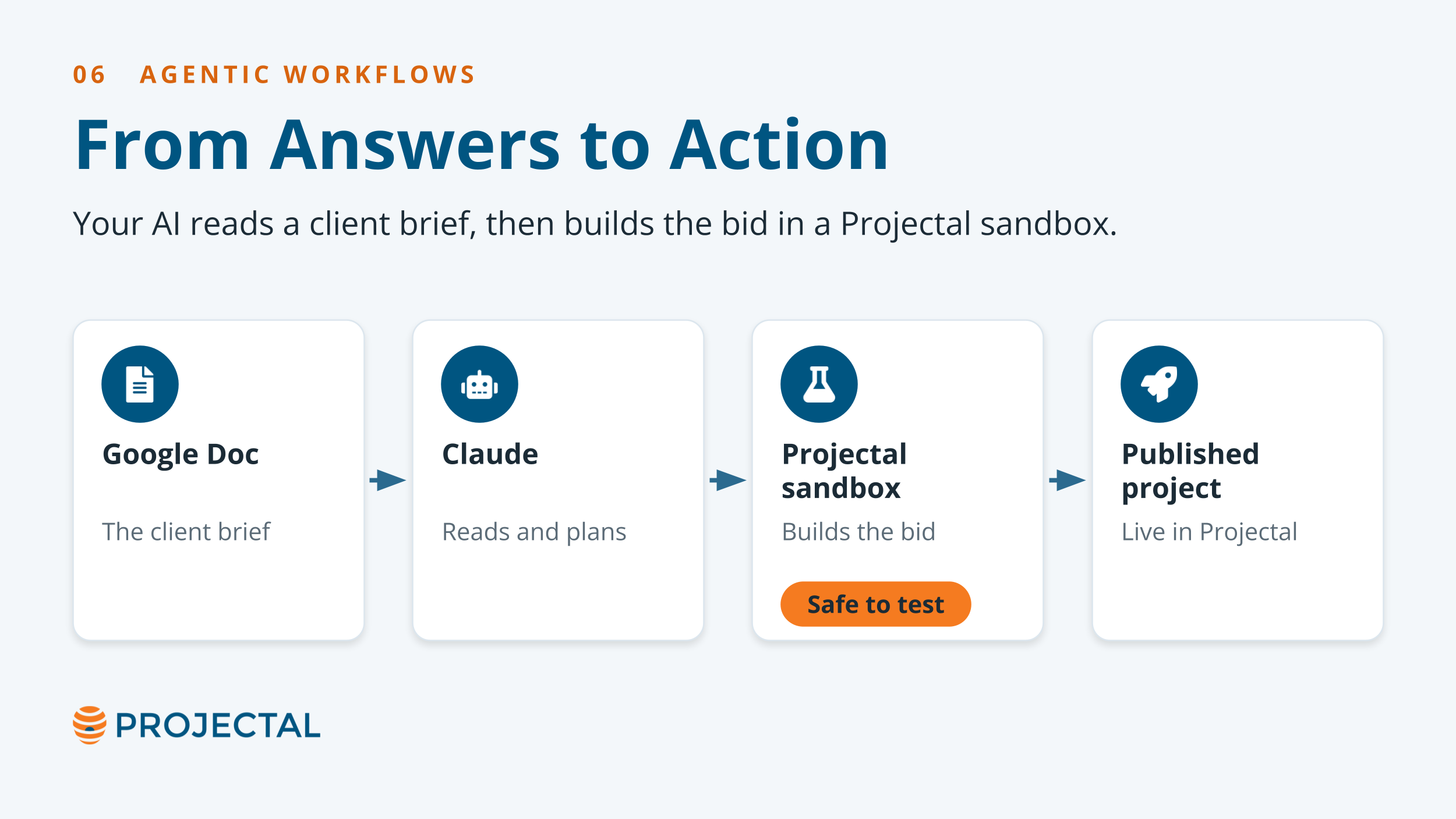
With Claude connected to Google Drive and Projectal, you can ask it to handle a large part of that process. For example, you could use a prompt like this:
Review the latest Google Sheet in the "Client Bid Requests" folder. Create a new sandbox in Projectal for it, and name a new project with the same name as the request. Use the appropriate task templates to estimate the bid.
Claude can review the client request, interpret the project requirements and identify the information needed to prepare the bid. It can then work with Projectal to create a new project in a Projectal sandbox rather than the live system, so it does not change your existing project information, and populate it with tasks using the appropriate templates.
Once Claude has created the project and its tasks, your team can review the result directly in Projectal. You can examine the proposed schedule, staffing requirements and costs, then adjust the scenario to see how different decisions affect the bid. For example, you might change task durations, move work between staff members or explore alternative staffing arrangements to understand the impact on costs and delivery dates. When the scenario is ready, it can be published to the live system. If it needs further work, you can make adjustments before sharing the updated information with the wider team.
What would otherwise involve manually interpreting a client brief and entering project information can now be completed in minutes, leaving the team to focus on reviewing the estimates and making informed decisions.
This is just one example of an agentic AI workflow. The same approach can be applied to recurring reports, task completion analysis, staffing reviews and other manual processes that rely on information in Projectal. The difference is that the AI isn’t simply answering a question. It is gathering information, working with connected tools, creating something in Projectal and returning the result for your team to review.
Security and Permissions
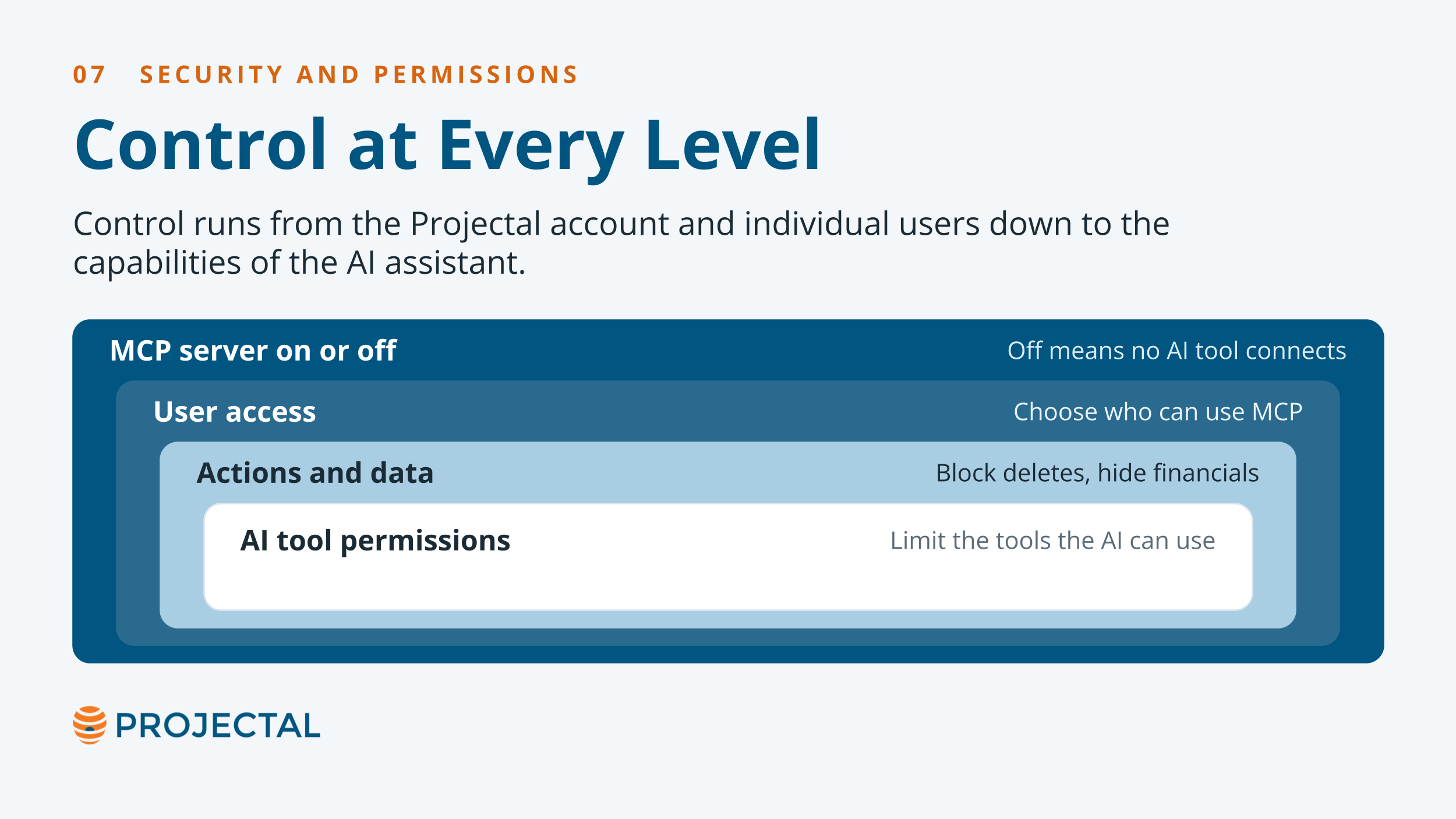
Giving AI assistants access to company information, particularly when they can create or update records, raises legitimate questions about security and permissions. Projectal provides several levels of control over MCP access.
Together, these controls let you manage access at the account, user and tool levels.
Keeping your information within your own systems
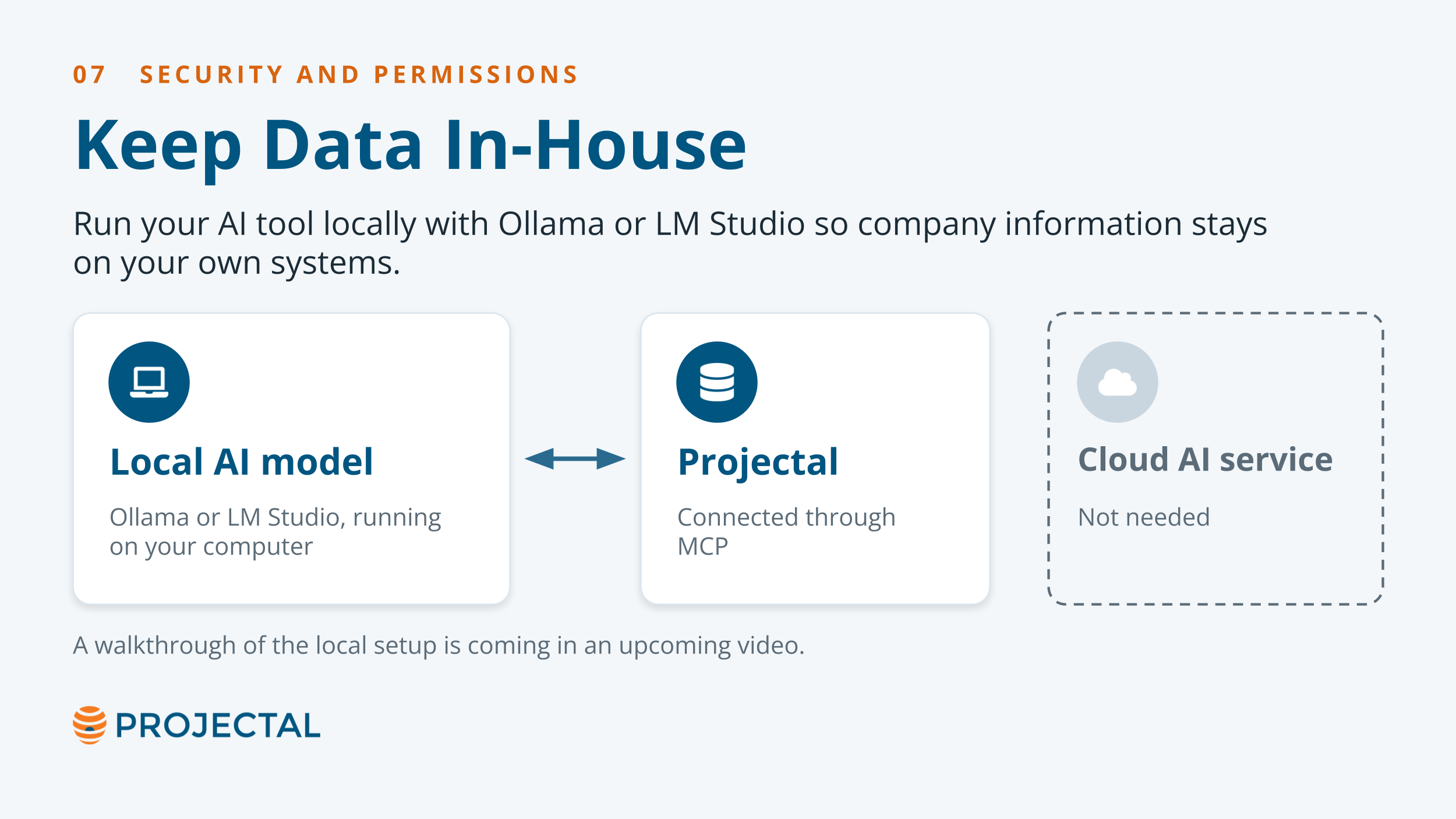
Another consideration is where your information is processed. If you don’t want company information going to cloud-based AI services, you can run AI models locally on your own hardware. Tools such as Ollama and LM Studio let you run supported AI models on your computers, providing an alternative to cloud-hosted AI services. We’ll cover local AI models and connecting them to Projectal in a separate guide.
If you’re considering introducing AI into your production workflows, we can discuss the available options and help you determine an approach that fits your team’s requirements.
Wrap Up: Try Projectal MCP today
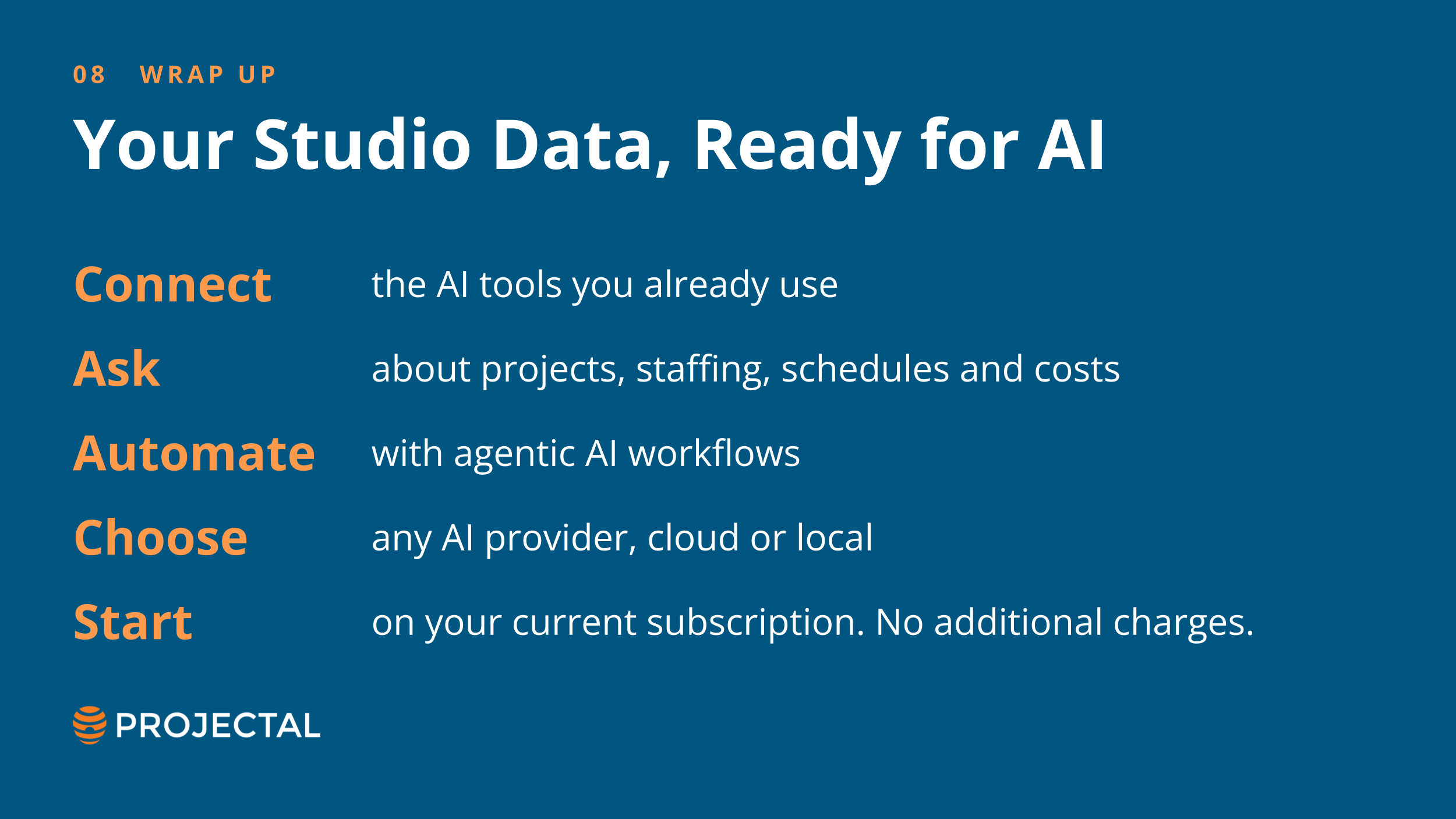
Projectal MCP gives you a new way to work with your business information. Connect the AI tools you already use to ask questions, generate reports and automate tasks, including creating and updating information directly in Projectal.
You can choose the AI tools that work best for your team, including locally hosted models. MCP is included with all Projectal subscriptions, with no additional charges from Projectal.
To find out what you can do with Projectal and agentic AI, contact us today.